

Using GIT in VS 2022

The new plugin build system and Git
I like to use Git as version control for the plugins I write. The main reasons for this are twofold: to start a different branch if I want to try something different to the rest of the plugin, and (more commonly) to make abandoning changes and going back to a previous version much easier. But I found a potential problem when using Git with Visual Studio 2022 and the new build system in the Cinema SDK for R2025.2 and later.
If you refer to my original article on this, you see that if you follow that sequence of actions, you end up with source code in one directory tree and the actual build in a different directory tree. This means that the source code is not in the same folder tree where the solution (.sln) file is located and where the plugin is actually built.
This image from the earlier article shows what I mean:

Now, this doesn't matter at all to VS, which copes just fine with the separate folder trees. But suppose I want to use Git with a project. I'll call the project 'MyPlugin' and it will have three sub-folders, 'project', 'source' and 'res' within the MyPlugin folder, as usual. When I run CMake, I will create a separate build folder named '_build_MyPlugin' as laid out in the main article.
In VS, I'd now like to create a local Git repository, so I choose 'Create Git Repository...' from the Git menu in VS and this is the dialog which appears:
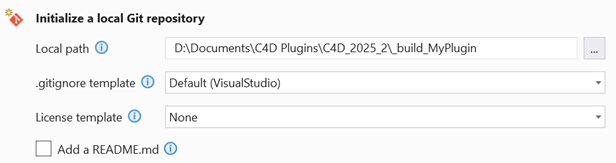
You can see that VS wants to create the repo in the build folder, which seems entirely reasonable, and if I do that, the build folder '_build_MyPlugin' will now contain a .git folder where the repo is held.
The problem
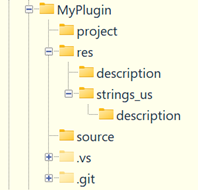
So far, so good, but...any changes I make to the source code, which is in a different folder tree, are not added to the commit list for Git. Although VS knows about the two separate folder trees, it hasn't handled this correctly when it comes to Git. The logical action would be to delete the repo then recreate it in the folder where the source is located, which would give this folder tree:
However, back in VS, this has led to a significant problem. In this image, you see on the left the Visual Studio Solution Explorer window when the repo is in the build folder, and on the right when the repo is in the source folder:
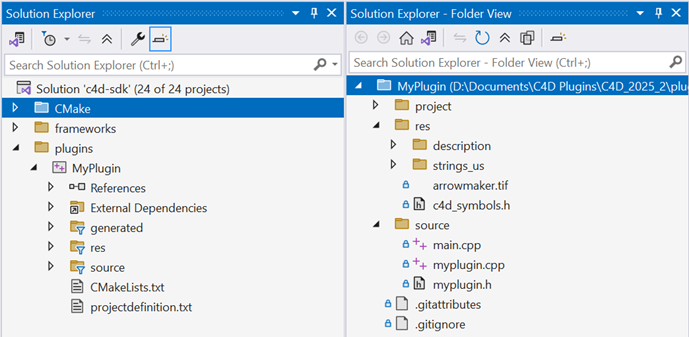
You can see that now, the solution explorer just displays a simple folder view, not the view complete with frameworks, project settings and so on. This is not so good, because you can no longer access the other properties of the project, and the Solution Explorer is just a window into the project folder. In addition, from the VS File menu, 'Close Solution' becomes 'Close Folder' implying a fundamental difference in how VS sees the solution (or even if it sees a solution at all). It seems that VS is smart enough to handle separate project and build directories, but not smart enough to create a Git repo in the desired location and manage it accordingly.
The solution
There are two possible solutions. One is to manage the repo outside VS, either using the command line (yuck!) or one of the many Git GUI front-ends such as GitKraken, SourceTree, etc. This works fine because VS now thinks you aren't using Git and the separate build/project folder trees are handled correctly. Unfortunately this does away with the convenience of managing the repo within VS. If that is important to you (it is to me) then the alternative is not to use separate build and project folder trees at all. When you run CMake, instead of letting it create a separate build folder, point it to the main project folder. Then you get a structure like this (this is the full structure after creating a repo and doing a build):
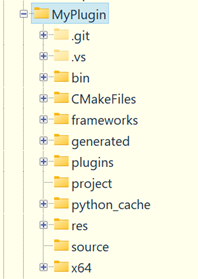
This means that when creating a Git repo, VS will use the build folder location and since the source and resource files are in the same place, changes to the source are managed correctly. The only downside is that you will need to add a few more files and folders to your .gitignore file, since you don't want all the various build files and folders to be added to any commits.
Page last update December 26th 2025