

Handling missing plugins

The Missing Plugins problem
If you ever load up an old scene from perhaps years previously, you sometimes get the message 'Several plugins used in this scene are missing' plus a list of the IDs of one or more plugins used in that scene which are no longer available and have not been loaded. Sometimes, this has no effect on the scene and you can ignore the message - though it would be nice to get rid of it because you see it every time you open the file. If the plugin was important to the scene, you will either have to get hold of the plugin for your version of C4D (if it is available) or substitute another one for it. The problem is, even if you find a substitute you might still be stuck with the annoying message.
If you intend to give the scene to someone else, it looks very poor to distribute it still with that message showing every time they load it, but it isn't always easy to fix. In order to do so, you first have to find the object/tag/shader/whatever in the scene. However, since the plugin hasn't been loaded, there is no interface to look for and all you are left with is the name. And of course, an object might have been renamed so you can't even search for the name. Worse, you might not know what the plugin was at all, if it was a long time ago or if this is someone else's file and you never used the plugin.
How does Cinema handle missing plugins?
It handles them as well as could be expected. If the plugin was something appearing in the object manager, the object name is kept and the icon is replaced with a question mark, but of course it doesn't do anything - it behaves like a null object. If it's a shader, the shader name stays in the shader link in the same channel of the material, but you can't click the shader to show its interface (it doesn't have one, since it hasn't been loaded) and it does nothing. Missing tags appear as question mark icons in the object manager. Missing videoposts appear as normal in the render settings but if clicked on, there is no interface and of course they do nothing. Importantly, the object, shader or whatever it is keeps its plugin ID value (the unique number which identifies that plugin) so we can use that to find it in the scene file.
Can this be readily solved?
The first issue is, what was this plugin? The four most likely possibilities are that
- it was an object of some kind (i.e. something visible in the object manager)
- it was a tag
- it was a shader
- it was a videopost (post-effect plugin)
If you don't know what type it is, or can't deduce it from the name, you can do two things, and you will need the plugin name and ID value, which Cinema helpfully gives you in the missing plugins message. Make a note of the missing plugin's ID number and name.
If you have compiled the Cinema 4D SDK example plugins, there is an extremely useful plugin among them. This is the Active Objects Dialog. What it does is display details of every object, tag, material, videopost, etc. in the scene, including their ID values. You can search through the list (which can be very long) to find the relevant ID value and then at least you will know what kind of scene element you are looking for. You would see something like this:
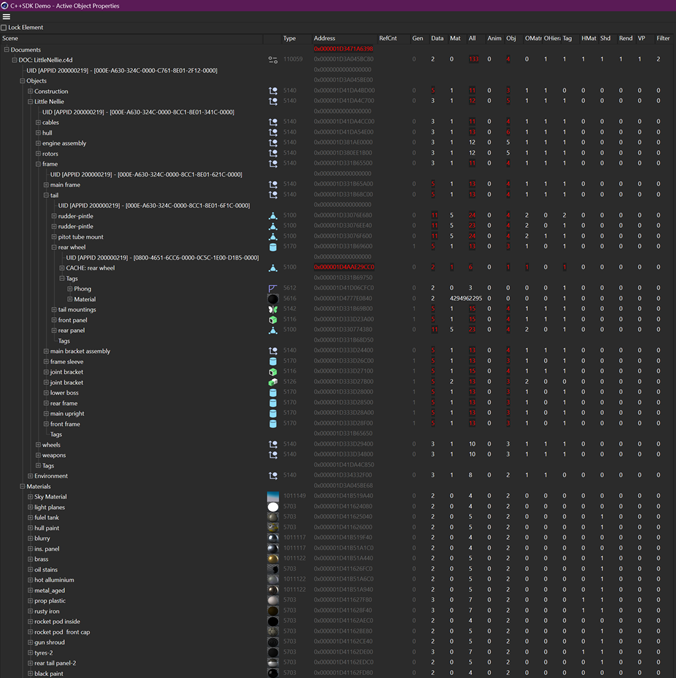
As you can see, this is a large, complex and very long list and only a small part is shown in this image! Crucially though, it will show the name and ID number of every plugin in the scene, somewhere in that list.
Unfortunately, the Active Object Dialog does not let you delete the missing object(s) once they are found. If you don't have this plugin, try searching on Google. You can enter 'cinema 4d plugin ' plus the name (failing that, the ID value) and see what happens. This may, or may not, yield useful results. If it doesn't you're stuck - but read on.
Example
A real-world example may be helpful. Recently, I opened a very old scene and got the message about two missing plugins. This is what I got:
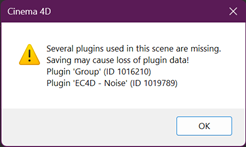
As it happened, I knew what one of them was. 'EC4D' was a collection of very good noise shaders for Cinema, sadly no longer available. So at least I could look for that one in the materials, except that this scene had 38 materials, each with 10 channels which had a link for a shader. The prospect of searching for that shader manually in each material wasn't a happy one, and a missing shader will generate the error even if the channel it is in is not active. To find it I had to look through the shader list for each material in the Active Object Dialog then look in the material to find the shader and remove it, which took time but was certainly quicker than a brute-force search. Fortunately, the AO Dialog showed the one(!) material out of the 38 which contained the shader, though not which channel it was in.
The other plugin was unknown to me. The name 'Group' isn't helpful, but searching Google with the ID number showed that it was in fact the 'Group' tag from the Riptide Pro plugin, which was an improved and very useful importer for .OBJ files than Cinema. I had a copy of this upon a time, but not any more as it doesn't seem to have been available since C4D R14. So that should be easy to find and fix...except that this scene had over 500 objects, many of them nested deeply in object hierarchies, and trying to find that missing tag, possibly attached to many objects, was even less appealing than trying to find the shader.
A Python script to iterate through all objects or materials, look for the tag/shader and delete it if found, was the simplest solution, but not very flexible. What if in another scene it was an object or videopost plugin which had to be removed? The script would have to be rewritten. A better solution was a full plugin with options to make it as general and flexible as possible.
The plugin
This is now available for download. Please see the main plugin page for more details.
Using this plugin, you can try to identify what type of plugin it is, so you can then list the instances of it and/or delete them. The plugin can search for the four commonest plugin types as listed above. If it can't find the specified plugin in the scene, it will ask the Cinema 4D API to identify the plugin type. This is slightly quirky but sometimes returns a helpful answer.
Once the plugin is identified, you can use an action called 'Generate List' to list all the instances of the plugin in the scene, so if you have 20 materials and three use the shader plugin, those just those three are listed in the interface. Note that only the missing shaders would be removed, the materials are otherwise untouched. The list generation step is entirely optional - you can go straight to the removal phase if you wish - but I think it is sensible to look at what you're about to delete before doing so!
Finally, if you are happy to remove all the plugin instances, you can set the 'Action to Take' menu to 'Remove Plugin' and all the instances of the missing plugin will be stripped from the scene file.
Page last update December 20th 2025